A directed acyclic graph, or DAG, is a graph formed of edges and nodes which flows in one dominant direction, like a family tree or a flow chart.
In this guide, I'll describe how to setup a project with D3 and how to write a basic DAG using the dagre-d3 library.
1. Create the HTML base
Our graph will need to be attached to an <svg> element within an HTML file. Create a basic HTML file with the following:
<!DOCTYPE html>
<html lang="en">
  <head>
    <meta charset="UTF-8">
    <meta name="viewport" content="width=device-width, initial-scale=1.0">
    <title>D3 DAG</title>
  </head>
  <body>
    <svg id="graph"></svg>
    <script></script>
  </body>
</html>
Note the <script> tags; this is where we will write our JavaScript.
2. Import libraries
The two libraries we'll need are d3 itself and dagre-d3. If we were using a build tool, we'd use npm to install these, but for simplicity, let's use a CDN.
Add the following above our empty <script> tag:
<script src="https://cdn.jsdelivr.net/npm/d3@7.9.0/dist/d3.min.js"></script>
<script src="https://cdn.jsdelivr.net/npm/dagre-d3@0.6.4/dist/dagre-d3.min.js"></script>
3. Create SVG elements
So far, our HTML page is blank, apart from an empty SVG of undefined size. Let's use D3 to edit this SVG.
First, we want to select the SVG element, then modify some attributes. At the top of our empty <script> tag, add the following:
const svg = d3.select('#graph')
  .attr('width', window.innerWidth)
  .attr('height', window.innerHeight);
Here we're using D3 to perform a similar function to document.querySelector('#graph') to select the SVG element, which has an id of 'graph'. Then we're adjusting the SVG to match the width and height with the window by using window.innerWidth and window.innerHeight.
Add an additional line to create an empty group inside the SVG:
const inner = svg.append('g');This is where we'll draw the graph.
Note: We could have created an SVG with width and height attributes, along with a group inside it, all in the HTML, but doing it this way gives a better understanding of how D3 can manipulate the DOM.
4. Setup the graph
Our graph is still blank. If you use the browser to inspect the HTML, however, you should see that the SVG fills the viewport and has a <g> element inside it.
We have a little more setup to do before adding anything we can see to the graph.
Initialise a new graph using the dagre-d3 library with the following line:
const graph = new dagreD3.graphlib.Graph().setGraph({});Inside the setGraph() method, we can add options to change the graph's layout. We'll change the flow from the default direction, top-bottom ('TB'), to left-right ('LR'). Inside the setGraph({}) curly braces, add the following:
rankDir: 'LR'Add a render method to allow us to render the graph using the dagre-d3 library:
const render = new dagreD3.render();Finally, we'll call the render method with the following line:
render(inner, graph);This render function takes in two arguments: where to render the graph, and what to render. Here, we're rendering the graph we just created in the inner, or <g>, SVG group.
5. Create nodes and edges
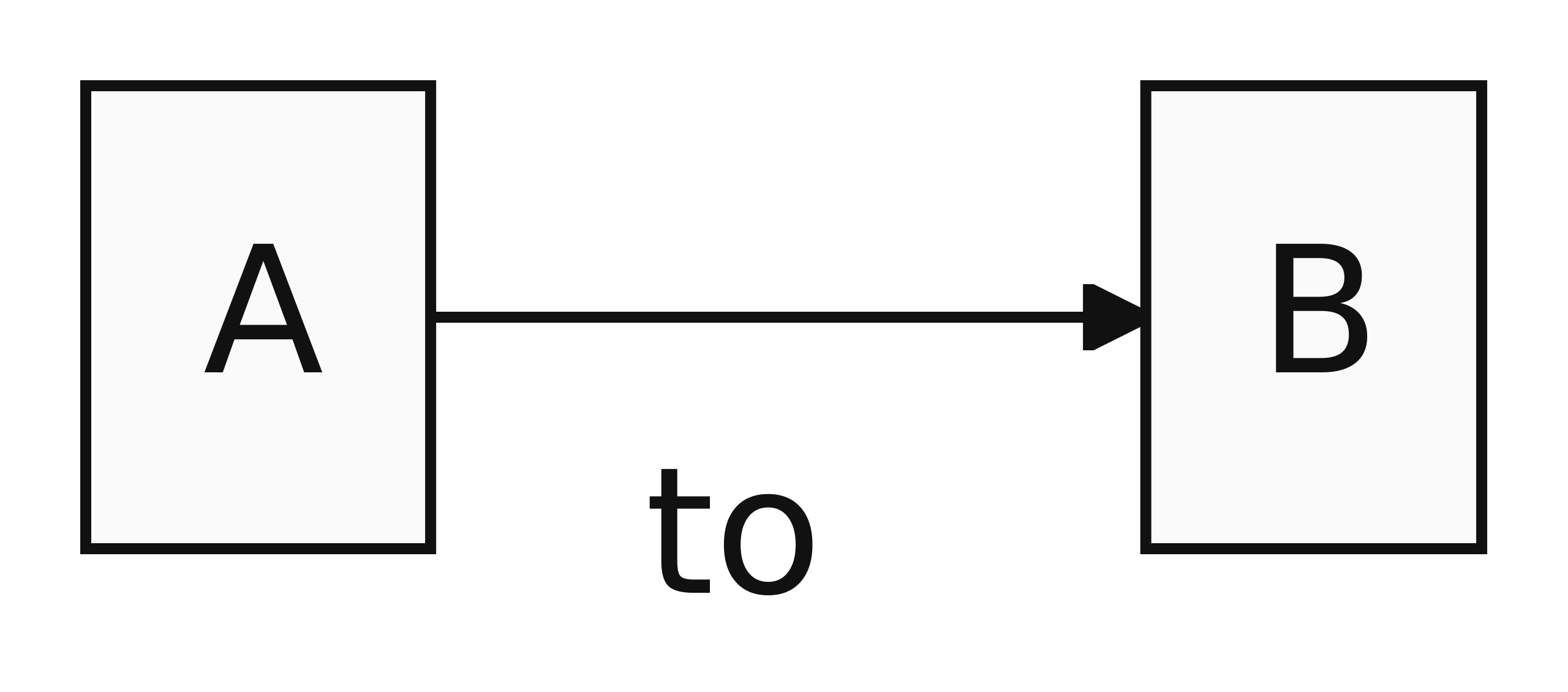
Now everything is setup, we come to the fun part. Let's create a very basic flow chart of two boxes (nodes) with a line (edge) joining them.
Create the nodes after the graph initialisation code, but before calling render().
graph.setNode(0, { label: 'A' });
graph.setNode(1, { label: 'B' });
The nodes can be numbered, as we've done, or the can be passed a string, like graph.setNode('zero', {}). We'll pass a label property into the options object to put some text inside the node. I've chosen 'A' and 'B' to make the direction of the flow more obvious.
If you refresh the page, you should see two black rectangles floating on the page. Let's join them together with an edge. Add the following line just below the nodes:
graph.setEdge(0, 1, { label: 'to' });Hmm, something doesn't look right. Our rectangles are black and the line isn't displaying correctly. This is a CSS issue. We can target the nodes to give them a background colour of white and the edge to give it a stroke colour of black.
Add the following to the <head> of the page:
<style>
  .node rect {
    stroke: black;
    fill: white;
  }

  .edgePath path {
    stroke: black;
    fill: black;
  }
</style>
Now our nodes should show the text clearly, with a black outline and a white fill colour. The line too should be visible, along with the label text.
6. Bonus: Add zoom support
We are effectively finished; this is the basic DAG. However, there are a few things we can do to make it a bit more useable.
Let's centre the graph on the page and enable zoom functionality, so we can scroll the mouse wheel to scale the graph.
Add the following D3 code above the render function:
const zoom = d3.zoom().on('zoom', (element) => {
  inner.attr('transform', element.transform);
});
svg.call(zoom);
This sets up D3's zoom function to apply a transform to the 'inner' <g> element. Calling it applies that function to the <svg>. If you refresh the page, the mouse scroll wheel should zoom the svg in and out. Let's refine it.
After the render function, add the following code:
const bounds = inner.node().getBBox();
const width = svg.attr('width');
const height = svg.attr('height');
These variables make it easier to access the size of the 'inner' <g> element as well as the width and height of the <svg>. Now add another svg.call() line with the following:
svg.call(
  zoom.transform,
  d3.zoomIdentity
    .translate(width / 2, height / 2)
    .scale(Math.min(width / bounds.width, height / bounds.height))
    .translate(-bounds.x - bounds.width / 2, -bounds.y - bounds.height / 2)
);
There's a lot going on here, so let's break it down.
Using d3.zoomIdentify, we're setting a default zoom transform state in three parts:
- With
.translate(width / 2, height / 2), we're centring the graph on the page. - With
.scale(Math.min(width / bounds.width, height / bounds.height)), we're scaling the graph so it fits the full width of the inner<g>element. - The final translate
.translate(-bounds.x - bounds.width / 2, -bounds.y - bounds.height / 2)sets the graph to fit the inner element.
These three transformations resize and centre the graph so it's as large as possible on the page.
7. Final code
Our final code should look like this:
<!DOCTYPE html>
<html lang="en">
  <head>
    <meta charset="UTF-8">
    <meta name="viewport" content="width=device-width, initial-scale=1.0">
    <title>D3 DAG</title>
    <style>
      .node rect {
        stroke: black;
        fill: white;
      }

      .edgePath path {
        stroke: black;
      }
    </style>
  </head>
  <body>
    <svg id="graph"></svg>
    <script src="https://cdn.jsdelivr.net/npm/d3@7.9.0/dist/d3.min.js"></script>
    <script src="https://cdn.jsdelivr.net/npm/dagre-d3@0.6.4/dist/dagre-d3.min.js"></script>
    <script>
      // Set up svg with D3
      const svg = d3.select('#graph')
        .attr('width', window.innerWidth)
        .attr('height', window.innerHeight);
      const inner = svg.append('g');

      // Add zoom support
      const zoom = d3.zoom().on('zoom', (element) => {
        inner.attr('transform', element.transform);
      });
      svg.call(zoom);

      // Set up graph
      const graph = new dagreD3.graphlib.Graph()
        .setGraph({ rankDir: 'LR' });

      // Draw nodes and edges
      graph.setNode(0, { label: 'A' });
      graph.setNode(1, { label: 'B' });
      graph.setEdge(0, 1, { label: 'to' });

      // Render graph
      const render = new dagreD3.render();
      render(inner, graph);

      // Get width and height of graph and svg element
      const bounds = inner.node().getBBox();
      const width = svg.attr('width');
      const height = svg.attr('height');

      // Centre and scale graph to fit page
      svg.call(
        zoom.transform,
        d3.zoomIdentity
          .translate(width / 2, height / 2)
          .scale(Math.min(width / bounds.width, height / bounds.height))
          .translate(-bounds.x - bounds.width / 2, -bounds.y - bounds.height / 2)
      );
    </script>
  </body>
</html>
For an example of this using Vite to bundle the code, check out my basic-dagre repo on GitHub.
For further information, and to make more complex graphs, take a look at the dagre-d3 wiki, as well as the original dagre wiki.