I'm a big fan of Linux, and I'm especially fond of having a minimal system with no bloatware. I've distro-hopped a number of times trying to find the perfect distro for me, alternating between Debian and Arch a few times. I finally tried Debian Testing, and really liked the rolling release version of Debian.
To install a minimal Xfce desktop environment, I use a similar process to Craig Coonrad's guide, where I install Debian's stable branch, then update sources to use Debian Testing.
Note: 'Bookworm' was the stable branch of Debian and 'Trixie' was the testing branch when this note was originally written. It's since updated to be 'Trixie' and 'Forky', respectively. This shouldn't matter, even when it changes again, as in the next step we refer to the testing branch as 'testing' rather than using a codename for a specific release.
1. Install minimal Debian Testing
When installing Debian via the ISO, we will encounter a screen titled 'Software selection'. Here, we can select which desktop environment we prefer; I want Xfce, but the checkbox here will install a lot of additional software I don't want, so we should uncheck everything except 'standard system utilities'.
Once installation has finished, we will reboot into a shell environment.
Log in as a root user, then edit the sources.list file with,
sudo nano /etc/apt/sources.listNow, update the file to include the following sources:
deb http://deb.debian.org/debian testing main contrib non-free-firmware non-free
deb http://security.debian.org/debian-security testing-security main contrib non-free-firmware non-free
Save and exit, then update the system with,
sudo apt update && sudo apt upgradeThen reboot.
2. Install minimal Xfce
Rather than installing the standard xfce package, which installs a lot of additional utilities, we can install only the essential packages with:
sudo apt install libxfce4ui-utils thunar xfce4-appfinder xfce4-panel xfce4-session xfce4-settings xfce4-terminal xfconf xfdesktop4 xfwm4Reboot, and we will be greeted with a LightDM login screen which will open up a working minimal Xfce desktop environment.
3. Connecting to the internet
There may still be a few essential utilities required to make things run smoothly, such as the Network Manager. Install with,
sudo apt install network-manager-gnomeThis will require configuring. Edit the NetworkManager.conf file with,
sudo nano /etc/NetworkManager/NetworkManager.confIn this file, under the [ifupdown] section, amend the line from managed=false to managed=true. Save and exit this file and then restart the Network Manager with,
sudo service network-manager restart4. Theming and adding custom CSS
I like to tweak Xfce to have a nice, clean, single panel.
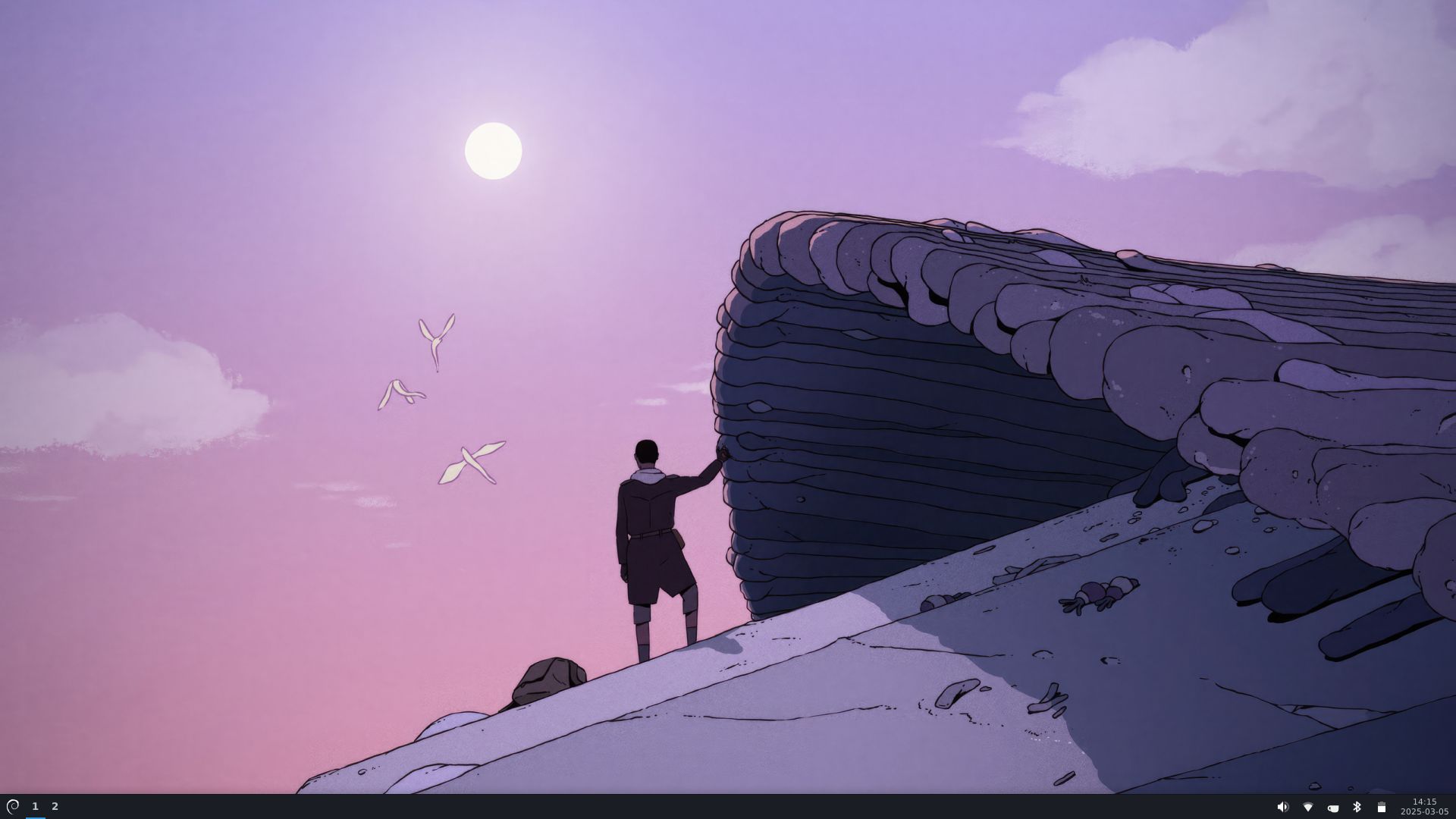
This can be achieved by modifying the panel properies and moving the items around. I use the Matcha GTK Theme to theme the desktop and Flat Remix for my icons.
We can add a small amount of CSS to adjust the panel spacing. Create a file called gtk.css in the ~/.config/gtk-3.0/ directory, and add the following CSS:
.tasklist button, #clock-button, #whiskermenu-button, #xfce4-notification-plugin, #xfce4-power-manager-plugin, #pulseaudio-button {
	border-radius: 0;
}

#whiskermenu-button {
  padding: 0 5px;
}

#xfce4-power-manager-plugin image {
  color: #ffffff;
  opacity: 1;
}

#pulseaudio-button image {
	-gtk-icon-transform: scale(0.9);
  color: #ffffff;
  opacity: 1;
}

#pulseaudio-button .recording-indicator {
  -gtk-icon-transform: scale(0.6);
  padding: 0 5px 0 0;
}

#xfce-panel-toggle-button {
  border-radius: 0;
  padding: 0 5px;
}
This removes rounded edges from buttons, scales some of the panel icons to make them feel more consistent, makes the semi-transparent icons opaque, and adds some spacing to make the buttons flow better next to each other.
To see these changes, we can restart the panel with the command,
xfce4-panel -r5. Additional applications
These are some of the additional applications I always install; I keep bloat to a minimum by being very selective.
- calibre ebook manager
- kew terminal-based music player
- LibreWolf as my primary browser
- Obsidian for notes and organising my thoughts
- Polypane as my development browser
- ungoogled-chromium as a supplementary browser
- VSCodium code editor
- WeeChat terminal-based IRC client
- WezTerm terminal emulator, along with ZSH and Oh My ZSH! with the Spaceship prompt and the
zsh-autosuggestionsandzsh-syntax-highlightingadd-ons